How to use AI Mode instead of regular Google searches (or avoid it altogether)
Artificial Intelligence (AI) has seamlessly integrated itself into our daily digital interactions, transforming how we engage with apps and websites. From enhancing photo editing capabilities to assisting in travel planning, AI’s influence is undeniable. A significant area where AI is making waves is in web searches. Instead of the traditional method of typing queries into a search engine, users can now interact with AI chatbots like ChatGPT and Claude, or utilize Google’s newly introduced AI Mode. This conversational interface allows for a more interactive and personalized search experience, where users can engage in back-and-forth dialogue, potentially leading to more insightful responses.
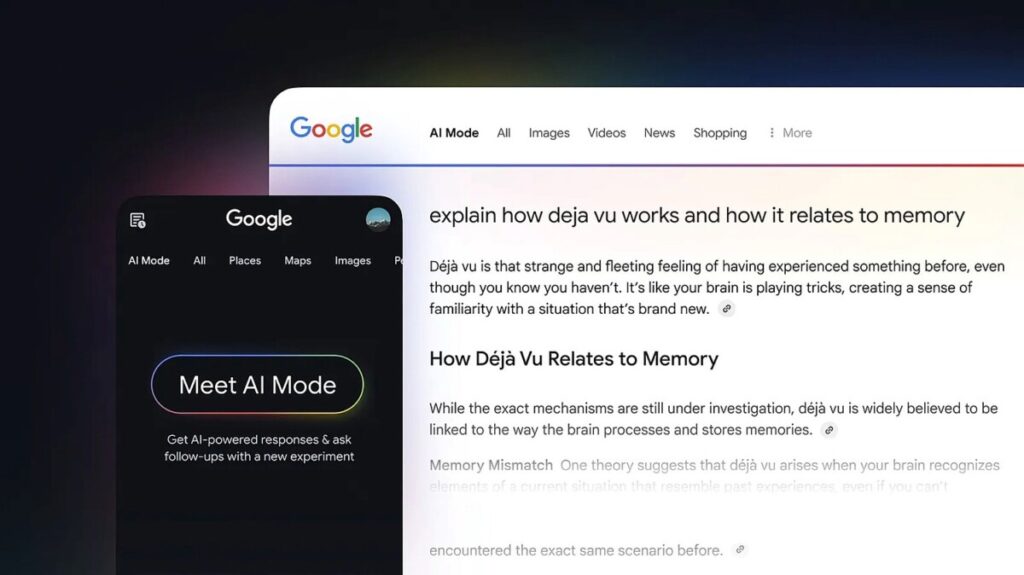
Google’s AI Mode, designed to enhance the search experience, invites users to ask detailed questions and receive comprehensive answers. By clicking the AI Mode button on the Google homepage, users can enter this new interface where they can type or even speak their queries. The functionality extends beyond text, allowing users to upload images or documents for tailored assistance—such as diagnosing issues with a bicycle or summarizing lengthy PDFs. This versatility positions AI Mode as a potentially more effective tool compared to traditional search methods, which typically yield a list of links rather than conversational, contextual answers. However, it’s essential to remain cautious, as AI responses can sometimes be inaccurate, a fact acknowledged by Google itself.
While the benefits of AI Mode are evident, concerns about its ethical implications and energy consumption linger. Critics point out that AI-generated content often relies on data scraped from human creators without proper credit or compensation. For those who prefer to avoid AI Mode, Google offers options to revert to standard search methods, although completely escaping AI’s reach is becoming increasingly challenging, even with alternative search engines like DuckDuckGo incorporating AI features. Users can manage their AI Mode history through their Google account, allowing for the deletion of past queries and maintaining privacy. As AI continues to evolve and permeate various facets of our online lives, understanding its functionalities and limitations becomes crucial for users seeking to navigate this new digital landscape effectively.
https://www.youtube.com/watch?v=a12GEK2mCYw
AI has made its way into nearly all of the apps and websites we use regularly, whether you like it or not. From
editing images
to
planning trips
, or doing anything else on our digital devices, AI is now more likely to show up.
That extends to web searches as well. Instead of just typing “best bars in Paris” or “how does the Moon affect the tides?” into a Google box, you can have a back-and-forth with AI and get answers that may be more useful. Bots such as ChatGPT and Claude now
offer web search
, and Google has added its own dedicated AI Mode, which we’ll cover here.
While this more conversational way of searching the web may feel more natural and give you quicker responses, you’re also going to
get some inaccuracies
—it’s just the way AI works. Google itself admits “AI responses may include mistakes” while you’re using AI Mode, so bear that in mind.
Questions also remain
about energy use
and the ethics of AI scraping work by human writers without recompense or acknowledgement (AI bots have never actually visited bars in Paris, they’re just regurgitating existing information). With that in mind, if you’d rather avoid Google AI Mode, we’ll cover how to do that too.
Get started with Google AI Mode
You might have already been invited to try AI Mode.
Screenshot: Google
You might find yourself invited to try out AI Mode via a large pop-up dialog the next time you visit Google, but if not, you’ll now find an
AI Mode
button to the right of the search box on
the Google homepage
. Click this to enter the AI mode interface, which invites you to “ask detailed questions for detailed responses”.
You can then type in whatever query you like. Maybe you want to know what the best smartphone under $500 dollars is, or the best craft activities for kids under 5. On the right, there’s a microphone button if you’d rather speak out your search request, or there are also picture and paperclip icons for uploading images and files respectively.
For example, you can upload an image of a broken bicycle and ask AI Mode the best way to fix it, or give it a multi-page PDF and ask what the key points are. It’s this sort of versatility that can make AI Mode several times more useful than a standard Google search, which returns a series of links to elsewhere on the web.
If you go for a regular search, without images or attachments, AI Mode will scour the web for answers and then present them in summarized form. You’ll see small web link icons that will direct you to the websites where the information’s been pulled from, as well as larger previews of these sites on the right.
Part of the reason for using AI Mode is so that you can keep the conversation going, and you can ask any follow-up questions you like beyond your main query. Perhaps you want to restrict your original search somehow, or ask Google more about what it’s found, or get the AI Mode to explain one of its answers.
Access your AI Mode history—or avoid it
AI Mode is more like a chatbot conversation.
Screenshot: Google
There are a few different features to know about in Google AI Mode besides the basics. At the end of each response, you’ll find thumbs up and thumbs down buttons for rating the quality of the output you’ve been given. There’s also a share icon (the lesser-than icon) you can use to share the results with someone else.
On the left, you’ve got options for starting a new search (the pen inside the rectangle) and for accessing your AI Mode search history (the clock symbol). Using the three dots by the side of each search they can be shared and deleted, while via the three dots at the top of the list you can delete your entire AI Mode search history.
You can also manage your AI Mode history in the same way as your history in other Google apps and services: Through your
Google account activity page
. From here you’re able to delete any AI Mode searchers you’ve previously run, go back to them, or tell Google to delete them automatically after a certain time period.
Along the top of the AI Mode screen you’ll see the usual Google search categories, including
Images
and
Shopping
. You can also click
All
to run a standard Google search—which should give you an idea of whether or not a regular search is going to suit you better. If you run a regular Google search, meanwhile, you can click
AI Mode
in the top left corner to switch to the new AI interface.
As for how to turn AI Mode off, you can’t—Google is betting big on AI, along with almost everyone else. All you can do is avoid it (and the AI Overviews), and run your Google searches as normal. Quitting Google doesn’t really work either: Even the alternative search engine
DuckDuckGo
now has an AI element, though it’s currently easier to ignore than Google’s AI Mode.
The post
How to use AI Mode instead of regular Google searches (or avoid it altogether)
appeared first on
Popular Science
.