You can finally tone down Liquid Glass on your iPhone
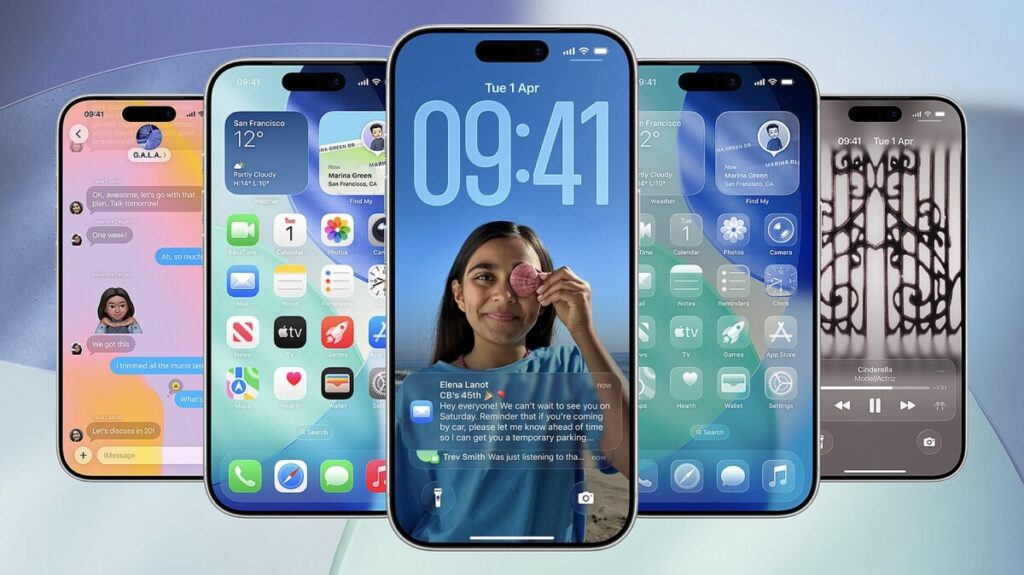
Apple’s recent update to iOS 26 has introduced a striking new design aesthetic known as the Liquid Glass interface, which has garnered mixed reactions from users. Upon rebooting their iPhones, users immediately noticed the rounded, translucent icons, dialogs, and menus that characterize this new look. This design overhaul extends beyond just iPhones, influencing the visual experience on iPadOS and macOS as well. While many users have embraced the fresh and modern appearance, some have found the transparency effects challenging, particularly in terms of readability and visual clarity. In response to this feedback, Apple has rolled out iOS 26.1, which includes a feature allowing users to adjust the Liquid Glass effect, offering a more personalized experience.
With iOS 26.1, users can now toggle between two settings: “Clear,” which maintains the original Liquid Glass aesthetic, and “Tinted,” which provides a more solid background for on-screen elements. This adjustment is easily accessible through the Settings menu under Display & Brightness and Liquid Glass. Although the change is instantaneous and visually evident in the preview window, the impact may not be as pronounced across all apps. For instance, users can observe the differences prominently in the Photos app, where the floating bar at the bottom becomes less transparent with the Tinted option. However, customization is limited, as users cannot select specific tint colors yet; the tint automatically shifts based on the on-screen content.
Looking ahead, Apple is also testing iOS 26.2, which promises further enhancements to the Liquid Glass interface, particularly on the lock screen. Users will soon have the ability to adjust transparency levels for the lock screen clock, which can sometimes become difficult to read against certain wallpapers. This can be done by long-pressing the lock screen and selecting “Customize,” where options for both Glass and Solid appearances will be available. Additionally, a transparency slider will allow users to fine-tune the effect. Beyond these new features, long-established settings in iOS, such as the “Reduce Transparency” option found under Accessibility, continue to provide users with tools to enhance readability and overall interface clarity. With these updates, Apple is striving to balance aesthetic innovation with user accessibility, ensuring that the iOS experience remains both visually appealing and functionally effective.
One of the biggest changes introduced
with iOS 26
was noticeable as soon as you rebooted your iPhone. The revamped Liquid Glass interface made icons, dialogs, and menus look a lot more rounded and translucent, and the same look expanded across iPadOS and macOS.
While Liquid Glass immediately won a lot of fans, not everyone is thrilled—and with the rollout of iOS 26.1, Apple has given users a way to tone down the Liquid Glass effect quite dramatically.
Reduce the Liquid Glass effect
iOS 26 now lets you partly disable Liquid Glass.
Screenshot: Apple
There’s one main switch for this, which you can find by opening up the main iOS Settings menu, then tapping
Display & Brightness
, and
Liquid Glass
. You’ve then got two options to choose between:
Clear
(the original Liquid Glass look) and
Tinted
(which adds more of a solid background to on-screen elements).
Your choice is applied immediately, and you can see the change in the preview window. However, the difference isn’t as pronounced as you might expect across every part of iOS. One place you can see it is in the Photos app: Try scrolling up and down through your photo and video library and look at the floating bar at the bottom.
With
Tinted
selected, there’s no way to choose the color of the tint behind dialogs and menus—at least not yet. You’ll find that it switches from a light shade to a dark shade depending on what’s currently on screen. You’ll see the effect best in Apple’s own apps, including Photos, which have all been updated to match the new iOS 26 look.
There’s more in iOS 26.2
Further tweaks are heading to the lock screen.
Screenshot: Apple
At the time of writing, Apple is still testing iOS 26.2, but it may have rolled out to the masses by the time you’re reading this. Assuming that all the features included in the iOS 26.2 beta make it to the final release, you’ll get another way of tweaking the look of Liquid Glass on your iPhone.
Specifically, you get the ability to adjust Liquid Glass on the lock screen too—where it can make text and icons a little illegible, depending on the wallpaper you’ve chosen. To find the option, long press on the lock screen, then choose
Customize
underneath the preview of the current lock screen.
Tap on the lock screen clock, and you’re able to switch between
Glass
(Liquid Glass) and
Solid
(no transparency). Even if you keep Liquid Glass in place, you get a slider underneath the color and font options, which lets you adjust the transparency of the effect. When you’re happy with how it looks, tap outside the pop-up dialog, then tap
Done
.
Other iOS 26 customization options
There are long-standing settings in iOS that can help too.
Screenshot: Apple
There are a few other tweaks you can make to the interface in iOS 26, which don’t specifically refer to the Liquid Glass look, but still affect it. If you open up Settings on your iPhone then tap
Accessibility > Display & Text Size
, you’ll find a
Reduce Transparency
toggle switch that dials down the Liquid Glass effect somewhat.
There are a few more entries on the same
Display & Text Size
menu that can be useful:
Bold Text
and
Larger Text
for making text on screen easier to read (even if Liquid Glass is enabled), and
Increase Contrast
for making it easier to pick out the foreground elements from the background on iOS.
Another option you might want to use can be found in the home screen customization options. Long press on a blank area of any home screen, then tap
Edit > Customize
. The panel that pops up lets you darken home screen icons, darken the background, and increase icon size—all of which can improve readability.
The post
You can finally tone down Liquid Glass on your iPhone
appeared first on
Popular Science
.