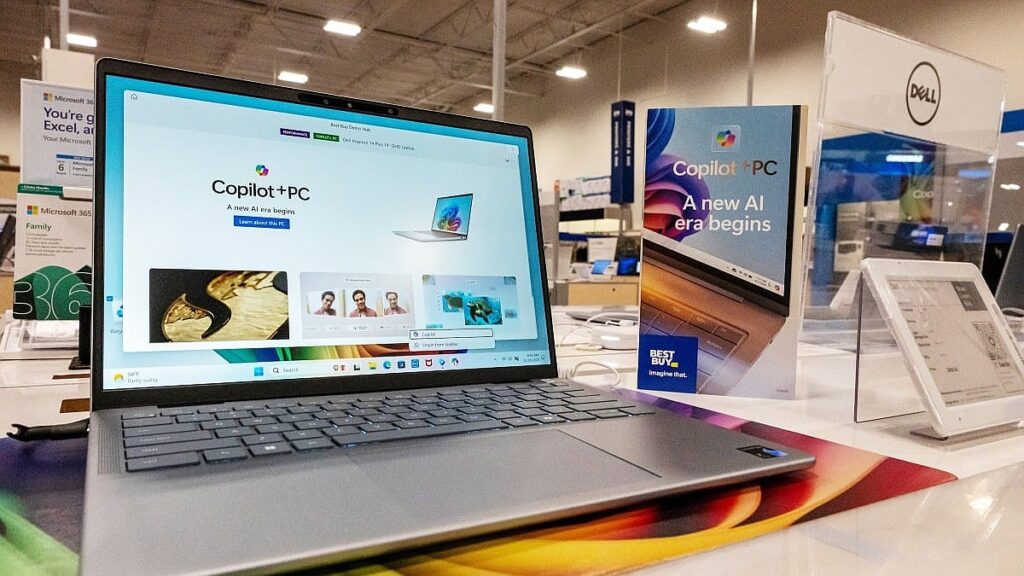
Sick and tired of AI? Heres how to remove Copilot from Windows 11.
Bloatware has long been a source of frustration for consumers, especially in the realm of electronics, where unnecessary applications and settings clutter devices. One of the most notable examples of this is Microsoft’s Copilot, which integrates AI features directly into Windows 11. While some users may appreciate these advancements, many are eager to remove what they perceive as superfluous additions to their operating systems. The question arises: can you effectively remove Copilot from your Windows laptop or PC? The answer is nuanced. Although you can disable and uninstall the Copilot app, completely erasing all traces of it is unlikely due to its deep integration within Windows 11. As Microsoft continues to evolve its AI offerings, further features are expected, making a full removal an impractical endeavor for the foreseeable future.
For those determined to reduce Copilot’s presence, there are actionable steps to take. The first method involves uninstalling the Copilot app through standard Windows procedures. Users can quickly access the app via the search function and right-click to uninstall, or navigate through the Settings menu to remove it from the list of installed applications. This simple process effectively halts Copilot’s functionality for most users. However, if you’re particularly averse to AI, additional measures can be taken through the Group Policy Editor for Windows 11 Pro users or the Registry Editor for those on Windows 11 Home. While the Group Policy Editor method is straightforward, the Registry Editor requires caution due to its complexity and potential risks. Users need to navigate to specific registry keys and alter values to fully disable Copilot. For the average user, uninstalling the app provides a significant step toward a cleaner Windows experience, while advanced users may choose to delve deeper into system settings.
In conclusion, while the presence of Copilot may be an unwelcome addition for some, there are practical ways to manage its impact on your Windows experience. By uninstalling the app, users can achieve a cleaner interface, and those willing to explore further settings can ensure that Copilot remains dormant. However, it’s essential to recognize that as Microsoft continues to push its AI agenda, the challenge of completely eradicating Copilot may only grow. Thus, for those who prefer a more streamlined operating system devoid of unnecessary AI features, staying informed and proactive is key.
There is perhaps nothing that has plagued the electronics consumer quite as much as bloatware. It’s omnipresent in most modern operating systems and products, whether it’s
extra stuff on Android phones
or a
bunch of superfluous settings
left on by default. Microsoft’s Copilot has the distinct classification of being both bloatware and a superfluous setting, so it’s pretty understandable if you want to get rid of it.
So, if you’re part of the anti-AI crowd, then you may be wondering:
Can you remove Copilot from your Windows laptop? What about a
Copilot+ PC
?
There
is
a way to shut down Copilot. However, you should manage your expectations.
Even on the
best Windows laptops
, there’s no way to fully delete
all
traces of Copilot, as Microsoft has fully integrated
Copilot
into the Windows 11 operating system, whether you like it or not. Since the ChatGPT-powered Copilot is a major push for Microsoft, it’s also fairly likely that even more Copilot features will be added with future updates, so trying to rid all traces of AI from your Windows laptop may be an exercise in futility anyway.
Still, with a little work, you can disable and remove all of the user-facing Copilot stuff, which will keep it hidden away and unable to function, thus leaving you with a cleaner Windows 11 experience. I tested all of the methods described in this story on my DIY desktop PC and my
laptop
, and they can help you turn Copilot off on your device, too.
A screenshot of the Copilot app’s settings in Windows 11, with the uninstall option highlighted.
Credit: Joe Hindy
SEE ALSO:
What is Copilot?
Uninstall the Copilot app
The first thing you should do is uninstall the Copilot app. This is a Windows app and can be uninstalled like any other Windows app. There are a few ways to do this, and we’ll outline two of them.
The fast way
Hit the Windows Key to open your search and type in
Copilot
.
Right-click the app with your mouse and select
Uninstall
.
A window will pop up asking you to confirm. Do so.
The app will be uninstalled.
The harder way
Open the
Settings
on your Windows PC.
Navigate to
Apps
and then
Installed apps
.
Find
Copilot
on your list of installed apps.
Click the three-dot button on the right side and click
Uninstall
.
For all intents and purposes, Copilot will cease to function on your PC after uninstalling the app, and you can go about your life in peace.
Disable Copilot on a Windows PC
Once the official app is uninstalled, there’s no real reason to do anything further, but if you
really
hate AI, you can if you want to. Damn the man!
In the interest of completeness, here’s how to disable Copilot on your PC.
This method is doable in two ways. If you have Windows 11 Pro, you can do this through the Group Policy Editor, which is quite simple. Those who have Windows 11 Home have to go through the Registry Editor, which can be an intimidating and potentially dangerous process. Thus, proceed at your own risk.
Disable Copilot through the Group Policy Editor
Hit the Windows Key to open search and type in
Edit group policy
or
gpedit.msc
and open the setting that pops up.
Once the Group Policy Editor is open, you’ll navigate to a setting in the left margin.
The order is
User configuration
, then
Administrative templates
, click on
Windows components
, and then finally
Windows Copilot
.
Double-click where it says
Turn off Windows Copilot
; a new window will open.
In the window, click
Enabled
, then
Apply
, and then finally
OK
.
Copilot will be disabled.
This method only works for Windows 11 Pro and Enterprise. While it is possible to install and use Group Policy Editor on Windows 11 Home, it’s not worth the effort, as there’s a better option:
Disable Copilot through the Registry Editor
A screenshot of an advanced editing option in Windows that is used to help disable Copilot
Credit: Joe Hindy
Hit the Windows Key and type in
regedit
, and then open the Registry Editor.
Navigate to
HKEY_Current_User
, then
Software
, then
Policies
.
Once there, go to
Microsoft
and then
Windows
, and finally
CurrentVersion
.
There, you’ll see an option called
WindowsCopilot
.
Double-click the
TurnOffWindowsCopilot
and change the value from 0 to 1.
Exit
Registry Editor
and reboot your PC.
It’s a simple enough process if you’re used to working in the Windows 11 backend, but you can mess up a lot of stuff in the Registry Editor if you’re not. Thus, again,
proceed with caution and don’t change any of the other values
. In addition, not all versions of Windows will have this registry option.
Voila, Copilot is as off as Copilot gets
If you’ve followed our advice, Copilot will now be disabled (or uninstalled) on your Windows laptop or
Chromebook
. Since most of its functionality comes directly through the Copilot app, uninstalling the app gets you about 90 percent of the way there, which should be more than enough for most Windows users. Disabling it via the Group Policy Editor or the Registry Editor finishes the job, but without the app in the front, Copilot can’t really do much of anything anyway.
Disclosure: Ziff Davis, Mashable’s parent company, in April filed a lawsuit against OpenAI, alleging it infringed Ziff Davis copyrights in training and operating its AI systems.